A First Look at a Plain-Text File
A plain-text file is easier to read when you know what to open it with, what its marks mean and how to inspect it without changing the contents.
You have downloaded a file called notes.txt and want to see what is inside, not accidentally edit it. A plain-text file is best opened in a text editor, where its characters, spaces and line breaks can be inspected directly. The first visit need not involve changing anything.
This is an orientation, not a formatting exercise. The aim is to open the document, recognise what the screen is showing, and leave the contents as they were. A plain-text file can hold a shopping list, a configuration note or a fragment of programme code; the screen gives each character a simple place on a line rather than arranging it with page styling.
Plain-text file basics
Plain text stores characters and line breaks without the page layout features associated with a word-processing document. It does not, by itself, specify a typeface, coloured headings, margins or bold text. Those features may be added by an application when it displays text, but they are not part of the plain-text contents.
The file may still look structured. A heading might begin with a hash mark, a list might use hyphens, and a configuration file may contain punctuation that has a particular meaning to the programme using it. These marks are characters too. Do not remove them just because they look technical.
Choose an ordinary text editor, such as Notepad on Windows, TextEdit on macOS in plain-text mode, or a basic editor available in a Linux desktop. A browser can display some text files, but an editor usually makes it clearer that the file is being viewed as text rather than as a web page. Avoid opening an unfamiliar document in a word processor if the goal is a clean inspection: it may offer formatting controls that are beside the point.
Start with an editor, not a formatting application.
Open without editing
Find the file in File Explorer, Finder or the file manager on your computer. If the operating system offers a preview pane, it can be useful for a quick glance, but use the editor for a closer look. The menu wording differs between systems; look for an option such as Open with, then select the text editor.
Before clicking, check the file name and location. If you are unsure which editor will open it, right-click or use the file menu and choose the application explicitly. Opening a file in an editor does not normally alter it. Typing, deleting, pasting or saving changes can. For this first look, keep your hands off the keyboard once the file appears.
Some editors show a notice about character encoding or ask how to interpret the file. Encoding is the way character values are represented so software can display letters and symbols. If the text appears as readable words, leave the editor’s current choice alone. If it shows replacement marks or odd symbols instead of expected characters, close without saving and try another available text editor or encoding option. Do not save a reinterpreted version over the original.
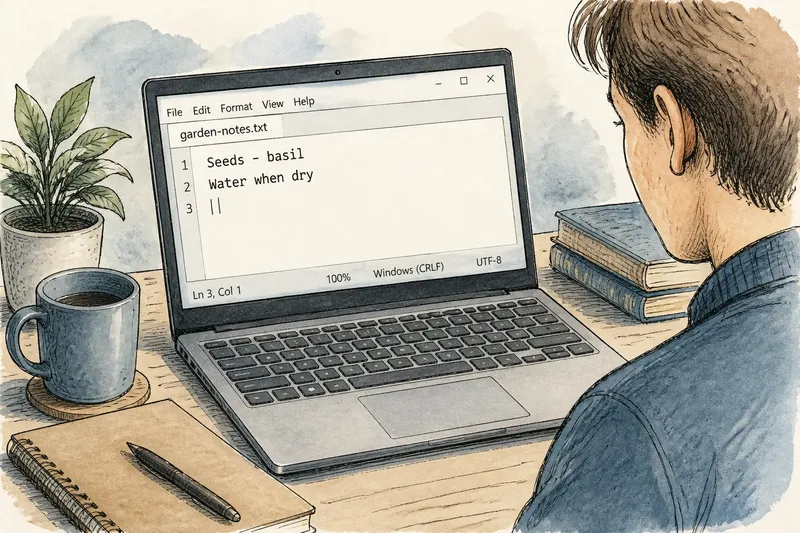
Say you open an invented file named garden-notes.txt and see “Seeds - basil” on one line, followed by “Water when dry” on the next. You can note the dash, the space after it and the break between lines without clicking into the text or pressing a key. The expected result is simply a readable view, with the original file left untouched.
Characters and spaces
In a plain-text editor, every visible letter and punctuation mark is a character. Spaces count as characters as well, though they may look like empty gaps. A tab can create a wider gap than a space, depending on the editor’s display settings. The apparent width is not a reliable way to tell which one is present.
Look at a line with ordinary words first. Notice where punctuation touches a word and where a space separates words. Then look at repeated spaces or indented lines. Indentation often helps a person read a text file, and in some files it can also affect how a programme interprets the contents. A blank-looking area is not necessarily disposable.
Some editors can reveal invisible characters, usually through a menu option with a name such as Show whitespace or Show all characters. When enabled, spaces, tabs and line endings may appear as small marks. This is an optional viewing aid. If the symbols make the page harder to read, switch the display option off; it changes how the editor draws the file, not the text itself.
Do not use the arrow keys to investigate a spacing mark if you are trying to avoid editing. Those keys move the insertion point, and the distinction between looking and typing can become less obvious on a busy screen. A visual inspection is enough for a first pass.
Line breaks and endings
A line break tells the editor where one displayed line ends and another begins. It is not the same thing as the width of the window. If a long sentence reaches the right edge and continues on the next screen row, the editor may have wrapped the display without adding a new break to the file. A line that begins after a deliberate return is a separate text line.
Look for a setting called Word wrap. With wrapping on, long lines flow onto the next visible row. With wrapping off, they may continue beyond the window, and a horizontal scroll bar can appear. Either view can represent the same file. Changing the wrap setting changes the display, not the stored contents.
Line endings are stored marks that signal where a line finishes. Different systems have historically used different conventions, so an editor may offer a status-bar label such as LF or CRLF. These labels are useful if you have a reason to care about compatibility, but they are not a verdict on whether the text is readable. For a simple inspection, leave the line-ending setting as it is.
A short final line may appear at the bottom without a visible ending mark. That can be normal. A text file need not have a line break after its last character, and the absence of one does not mean that the last line has vanished.
What should I look for?
Why does the text look crowded?
The editor may use a narrow window, a small font or disabled word wrap. Enlarge the window or change the display settings if needed; avoid inserting spaces or breaks to make the view tidier.
Why are there odd symbols?
The selected character encoding may not match the file, or the file may contain characters the current font cannot display. Close without saving, then try a different text editor or an appropriate encoding choice.
Can I use a browser instead?
A browser can show plain text, especially when the file is served as text or opened locally. An editor is more useful for noticing line boundaries and display options, while a browser may wrap long lines according to its own layout.
How do I leave without changing anything?
Use the close control or the editor’s close command. If a save prompt appears, choose the option that discards changes, rather than saving; if you have made no edits, there should be nothing to save.
Close without saving
When you have seen enough, close the editor. If it asks whether to save changes, pause and read the choices before selecting one. Choose the option that discards edits if the document has been altered accidentally. If you are certain no content changed, closing without saving is still a sensible habit for an inspection.
Some editors display a small mark beside the file name when there are unsaved changes. Others show a prompt only when closing. The mark and wording vary, so treat the prompt as a request to decide, not as an invitation to press the first button offered.
If you need a record of what you saw, write a note elsewhere rather than adding comments to the file. A separate note can describe the name, a visible line or an unusual character without altering the document under inspection. This matters especially when the file belongs to an application or another person.
For a first look at a plain-text file, the useful details are modest: which characters appear, how spaces are displayed, where actual line breaks occur, and whether the editor is wrapping long lines. The display can be adjusted to make those details easier to see; the file itself need not be rearranged. Close it when you are done, and the original remains a document you have observed rather than one you have quietly rewritten.