The Browser Bar Is Not the Web Address Itself
Understand the browser bar, web address and page they point to, so you can diagnose missing pages, confusing search results and misleading links.
You type a shop’s name into the long field at the top of the browser, press Enter, and land on a list of search results instead of the shop. The browser bar and web address are related, but they are not the same thing. Knowing which part you are looking at helps explain a surprising number of ordinary web troubles.
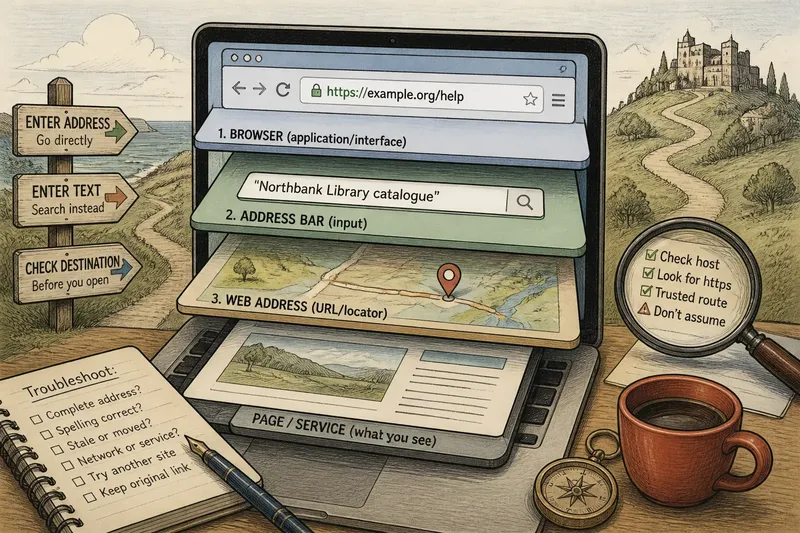
The browser is the application, such as Firefox, Safari, Chrome or Edge. Its bar is part of the application’s interface: a place to enter either a web address or a search query. A web address, also called a URL, identifies a location or resource. The page or service is what the browser requests and displays after using that address. Confusing these layers can make a harmless navigation problem look like a broken website.
Three separate layers
Think of a browser window as a desk with a labelled input field. The browser provides the desk; the bar accepts text; the web address tells the browser where to go. A search phrase in the same field asks a search service to find possible destinations instead. The field’s appearance can be nearly identical in both cases, which is convenient until it is not.
A URL commonly contains a scheme, a host name and, sometimes, a path and other details. In https://example.org/help, HTTPS is the scheme, example.org is the host, and /help is the path. The host helps identify the server or service; the path indicates a resource within it. The browser may hide some URL details in its display, or show a shortened form, but that does not make the bar itself the address.
The page is not simply the text in the bar. A server may redirect an address, return an error, or deliver a page that depends on account status or other information. The same visible address can also lead to changing content. The URL is a locator, not a label that fully describes what will appear.
Searches mistaken for addresses
A common snag is entering a name, phrase or incomplete address and expecting the browser to open a particular page. If the text is not recognised as a complete address, the browser may send it to its configured search provider. That is a normal feature, not evidence that the browser has ignored you.
Say you enter “Northbank Library catalogue” in the bar because you want the library’s own catalogue. The browser may show search results, since the phrase is a query rather than a complete URL. To reach a known site directly, enter its full address if you have it, or use a search result only after checking the displayed domain and destination.
If a familiar address suddenly produces results, check for missing parts, spaces or a spelling slip. A domain such as northbank.example is different from the words “Northbank Library”; one is an address component, the other is just text. Browser suggestions can help, but they may include searches, history entries and lookalike sites together.
When direct navigation matters, inspect the host before opening a result.
Addresses that do not open
A page that fails to load can have several causes, and the bar offers only part of the evidence. First check whether the address is complete and correctly spelled. A missing character in a host name can send the request elsewhere or prevent it from resolving. A copied address may also contain punctuation that belongs to the surrounding sentence rather than the URL.
Next, consider whether the address is stale. A page may have moved, been removed or become available only after signing in. If the site’s main page loads but a particular path does not, the service may have changed its internal organisation. Try navigating from the site’s own menus, rather than repeatedly editing a path whose purpose is unclear.
If nothing on the site loads, the issue may lie with the network, the browser or the service itself. Try another known site, then reopen the original address in a fresh tab. If one browser behaves differently from another, a browser setting, extension or stored session may be involved. These checks narrow the problem; they do not identify its cause with certainty.
Keep the original address available before changing it, especially if it came from a message or saved bookmark.
Similar-looking destinations
A browser bar can display a legitimate-looking address while the page itself imitates another service. The important part to inspect is the host name, not a familiar word appearing somewhere later in the URL. For example, account.example.attacker.invalid is hosted under attacker.invalid, not under example. A long path or subdomain can make the intended distinction easy to miss.
HTTPS indicates that the connection is encrypted between the browser and the host named in the address. It does not, by itself, confirm that the host belongs to the organisation you intended to visit. Treat unexpected sign-in prompts cautiously, especially when a link arrives in an unsolicited message. Instead of following it, open a saved, known address or find the service through a trusted route.
Imagine you receive a message asking you to review a shared document. Its button opens a page with the right logo but an unfamiliar host. Rather than entering a password, you could close that tab and open the document service from a bookmark you already trust. The observable result to look for is whether the document appears within the expected service and account, not whether the page merely looks familiar.
For account access, recognise the host before trusting the page’s appearance.
What should you check first?
Why did my address become a search?
The browser likely treated the entered text as a query because it did not recognise it as a complete web address. Check for a missing domain or use a search result only after verifying where it leads.
Why does the address change after I open a page?
The site may redirect the browser to another address, for example to a sign-in page or a preferred version of the site. Read the new host and path before entering sensitive information, since a redirect can also lead somewhere unexpected.
Can the same address show different pages?
Yes. A site may present different content according to the account, session or information requested, while retaining the same visible address. The address identifies a route or resource, not every detail of the response.
Does a padlock prove a site is genuine?
No. It indicates an encrypted connection to the host shown by the browser, not that the host is the organisation you meant to contact. Check the host name and use a trusted route for important accounts.
Browser display quirks
Browsers simplify the address display to save space. They may omit the scheme, hide some punctuation, or present a site name beside controls that do not belong to the URL. Click or focus the bar to inspect the full address available in that browser. On a phone, the bar may move or collapse as you scroll, but its role remains the same.
Bookmarks add another layer of potential confusion. A bookmark stores an address and a label; the label can be edited and may no longer describe its destination. If a bookmark opens an unexpected page, inspect its stored address through the browser’s bookmark controls, then replace it with a verified destination if appropriate.
Private browsing does not turn a browser into a different web service, and it does not rewrite addresses. It mainly changes how the browser handles certain local browsing data. Likewise, clearing history may remove convenient suggestions without changing the underlying address or fixing a server-side problem.
A calm troubleshooting order
When a page behaves oddly, work from the visible input towards the remote service:
- Read the text in the bar. Decide whether it is a search phrase or a complete address.
- Check the host spelling. Watch for missing letters, extra punctuation and unfamiliar endings.
- Notice what appears. Search results, an error page and a sign-in screen indicate different outcomes.
- Try the site’s front door. Use its known main address or trusted bookmark, then follow its own navigation.
- Compare carefully. If the page still fails, try another browser or known site to see whether the issue is limited to one destination.
Stop if a page requests credentials through an unexpected route. For an address that concerns work, banking or an account you cannot afford to lose access to, confirm the correct destination with the relevant organisation through a contact method you already trust. Browser labels and familiar logos are useful clues, not substitutes for checking the actual host.
The browser bar is a useful control, not a miniature map of the whole web. Separate the application, the address and the returned page, and a confusing screen becomes easier to describe: a query was sent, a host could not be reached, a path failed, or a page did not match its address. That description is often the most useful starting point for the next check.